

Enabling your modules
Modules are how you tailor Kotbo to your community. Only enable the features your team actually intends to use: the navigation stays much clearer that way.
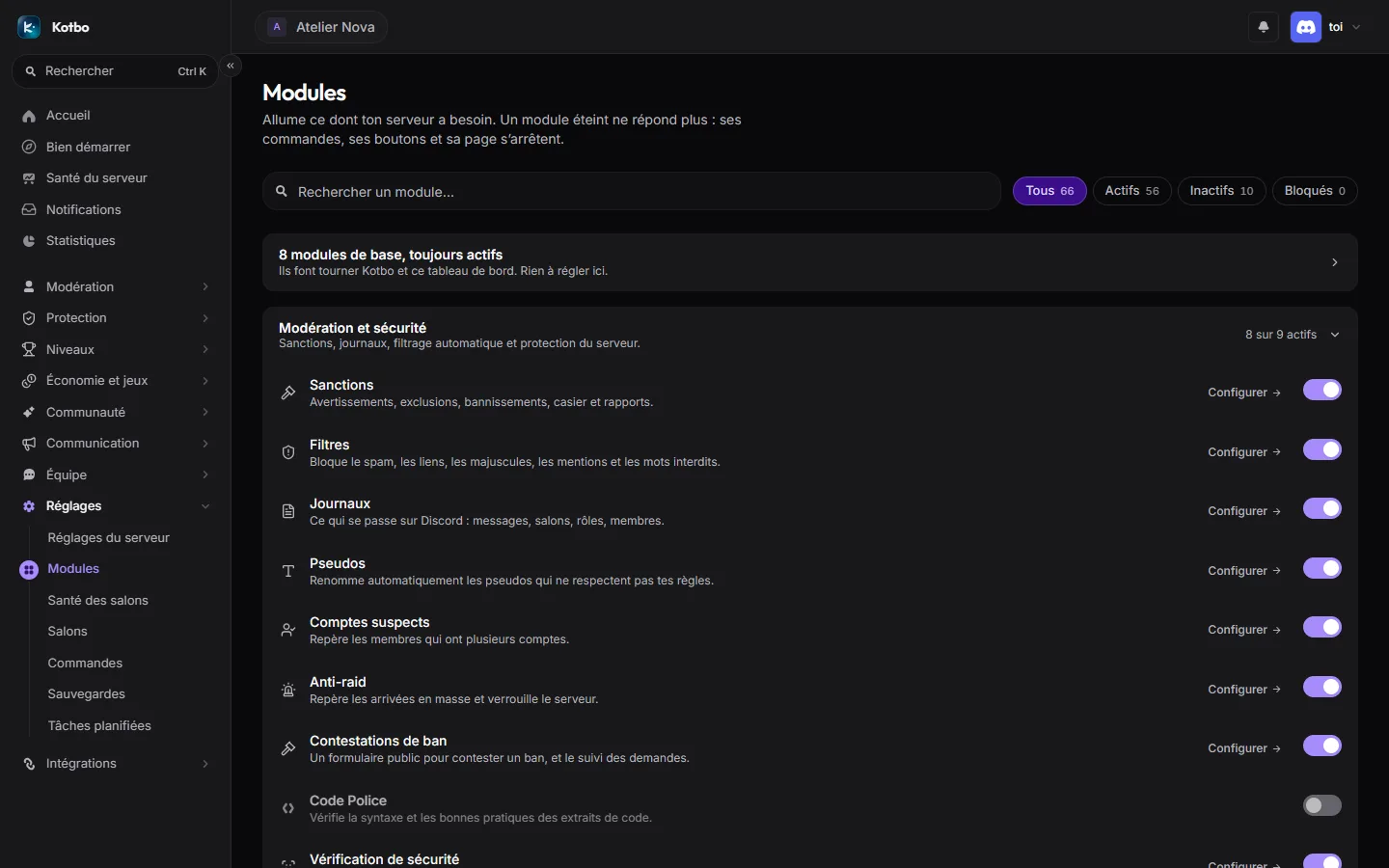
Enable a module
Section titled “Enable a module”Open Configuration → Modules
This page is restricted to server administrators. You can open Modules ↗ directly.
Find the feature
Each card summarises what the module does. Flip the toggle next to it.
Configure its new page
An entry appears in the sidebar. Open it to choose the module’s channels, roles and behaviour.
Test it on Discord
Run a simple action with a test account before announcing the feature to your community.
Where to start?
Section titled “Where to start?”| What you need | Suggested modules |
|---|---|
| Welcome a community | Announcements & Auto-Role, Reaction Roles, Rules |
| Organise moderation | Members, Sanctions, Filters, Discord logs |
| Liven up the server | Leveling & XP, Giveaways, Suggestions |
| Structure a team | Tickets & Satisfaction, Recruitment, Planning, Directory |
Disable a module
Section titled “Disable a module”Go back to Settings → Modules and flip its toggle off. The matching page disappears from the sidebar and the related automations stop running.
From the module’s page, the options menu (next to the title) also offers Turn off module: Kotbo asks for confirmation, since its commands and automations stop for the whole server.
A disabled module’s page, opened through its address, shows the Module disabled banner: you can browse it, but nothing is saved until the module is turned back on with the Enable module button.
Disabling a module should not be treated as deleting data. If you want to start over, check the module’s own options first or contact the administrator of your Kotbo instance.
You can now configure your first module with the Welcome & leave messages guide.