

Filters (auto moderation)
The Auto moderation (AutoMod) module instantly blocks harmful behaviour and unwanted messages before a moderator ever has to step in.
Available sanctions
Section titled “Available sanctions”Every filter is enabled on its own and has its own Action menu, which decides what Kotbo does when a rule is broken:
- Delete silently: the message disappears, with no notification to the member.
- Delete and warn the member: the message is deleted and the member receives a warning.
- Block the message: the message is blocked before it is posted.
- Block and time out: the message is blocked and the member is muted.
- Timeout (10 min): the member cannot write for 10 minutes.
- Warning: a warning is recorded in their file.
- Alert only (in the logs): nothing is deleted, an alert is simply sent to the logs.
Available filters
Section titled “Available filters”1. Anti-spam
Section titled “1. Anti-spam”Limits how fast a member can post.
- Maximum messages: the allowed limit.
- Within how many seconds: the window used for the count.
- Sanction: the action applied when the limit is passed.
2. Links and invites
Section titled “2. Links and invites”A single filter covers external links and invites to other Discord servers.
- Allowed sites (one per line): any domain missing from this list triggers the sanction.
3. All caps
Section titled “3. All caps”- Share of capitals (%): the share of capital letters at which the message is sanctioned.
- Minimum length: below this character count the message is not analysed, which avoids blocking a plain “OK”.
4. Too many emojis
Section titled “4. Too many emojis”Limits how many emoji a message may contain. Set to 0, the filter is disabled and allows an unlimited number of emoji.
5. Too many mentions
Section titled “5. Too many mentions”Limits how many mentions a message may contain. Set to 0, it allows an unlimited number of mentions.
6. Ghost pings
Section titled “6. Ghost pings”Detects pings that are deleted or edited quickly. Two actions to choose from: Alert only or Warning and alert.
7. @everyone and @here
Section titled “7. @everyone and @here”Deletes unauthorized @everyone and @here mentions. Possible actions: Delete only, Delete and warn, or Timeout (10 min).
8. Banned words
Section titled “8. Banned words”Your own blocklist.
- Banned words (one per line, 1000 max).
- Exceptions (allowed words, one per line): useful for a word that contains a forbidden sequence of letters.
9. Insults and offensive content
Section titled “9. Insults and offensive content”- Active categories: Insults and profanity, Sexual content, Hate speech.
- Exceptions (words allowed anyway, one per line).
10. Adding bots
Section titled “10. Adding bots”Prevents anyone other than the server owner from adding bots. A bot added by someone else is automatically kicked or banned.
- People allowed to add bots: the list of exceptions.
- What to do with the added bot: Kick the bot or Ban the bot.
11. Emergency admin removal
Section titled “11. Emergency admin removal”Automatically removes ADMINISTRATOR roles when destructive actions are repeated in a short time. It is a safeguard against a compromised administrator account.
- Short limit and Long limit: the two rates that trigger the suspension.
12. Admin permission lock
Section titled “12. Admin permission lock”Puts sensitive administration actions behind an approval step.
- Roles that can approve: in addition to the owner, members of these roles can approve or reject requests.
- Alert channel: where requests are announced.
- View pending requests: opens the queue.
Role position
Place the bot’s role above the ADMINISTRATOR roles, otherwise the automatic reverts cannot be applied.
Testing a rule on past messages (Simulator tab)
Section titled “Testing a rule on past messages (Simulator tab)”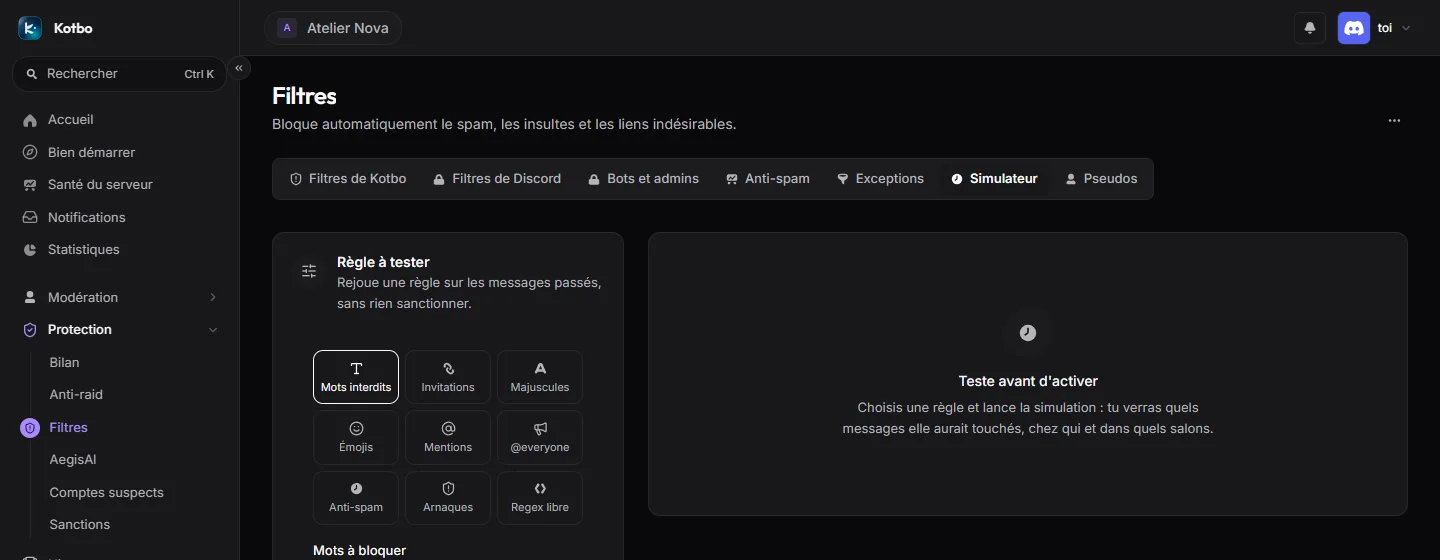
The Simulator tab replays a rule on past messages without sanctioning anyone: you see which messages it would have hit before turning it on. A filter’s Test button opens the simulator straight on that filter, with its settings.
- Pick the Rule type: Banned words, Invites, Caps, Emojis, Mentions, @everyone, Anti-spam, Scams or Custom regex, then adjust its settings.
- Pick the Period: 24 h, 7 days or 30 days.
- Tick Compare with the live version to see what your changes add or remove.
- Click Run simulation.
The result shows Messages hit, Members hit, Likely false positives (staff, code or quote) and Messages scanned, with Triggers per day, Most affected channels and Most affected members. The message list highlights the triggering passage; Allow this passage adds it to the allow list.
When the result suits you, Apply these settings to the page carries the tested rule over to the filter. Remember to save afterwards.
Exceptions / ignored channels and roles
Section titled “Exceptions / ignored channels and roles”You can globally exclude certain roles and channels from every filter, so AutoMod does not get in the way of your staff’s work.
- Ignored roles: the roles filters never affect.
- Ignored channels: the channels where no rule is applied.