

Welcome & goodbye
Welcome new members, see off those who leave and thank boosters with personalised messages, hand out automatic roles, and compare several welcome messages to keep the one that makes the most people stay.
In the sidebar, open Communication → Welcome & goodbye (Open Welcome & goodbye ↗). The page has six tabs: Welcome, Goodbyes, Boosts, Auto roles, Welcome thread and A/B tests.
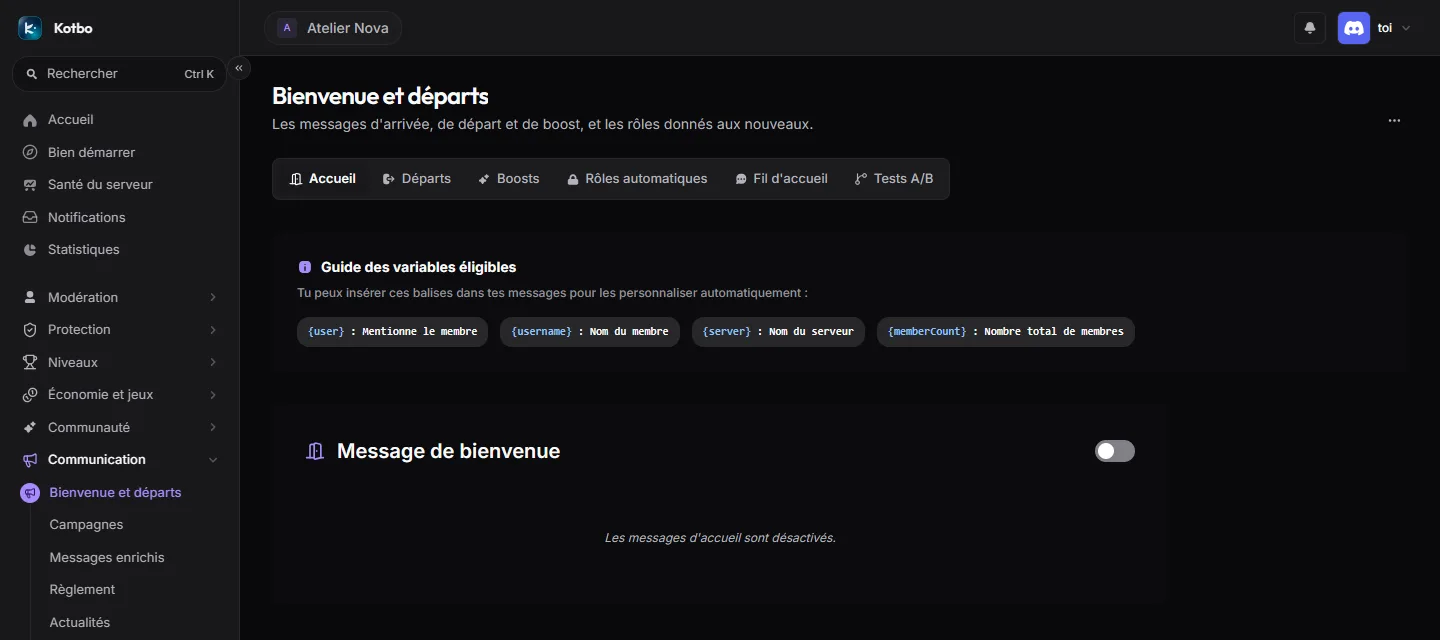
Setting up the welcome message
Section titled “Setting up the welcome message”Open the “Welcome” tab
It sits right under the page title.
Turn on “Welcome Message”
The switch is at the top right of the block.
Pick the broadcast channel
Select a text channel new members can see, for example #welcome.
Write the message
Start from one of the Presets or write your own, with the variables below.
Check the preview, then save
The Discord Preview refreshes in the page. Click Save in the bottom bar.
Available variables
Section titled “Available variables”| Variable | Result |
|---|---|
{user} | Mentions the member, for example @JohnDoe. |
{username} | Shows their name without a mention. |
{displayName} | Shows the nickname they use on the server. |
{server} | Shows your server’s name. |
{memberCount} | Shows the total number of members. |
{boostCount} | Shows the current number of boosts. |
Example:
Welcome {user} to {server}!You are our member number {memberCount}!Adding a welcome image
Section titled “Adding a welcome image”Turn on Enable welcome image to attach a banner with the new member’s avatar. The Custom background image URL (Optional) field changes the background; without a URL, Kotbo uses its default artwork.
Setting up the leave message
Section titled “Setting up the leave message”Open the Goodbyes tab. The form works the same way: turn on the Leave Message, pick a channel and write the text. The {user} variable may no longer produce a clickable mention after the member has left; use {username} if you only want to show the name.
The page’s other tabs
Section titled “The page’s other tabs”Boosts
Section titled “Boosts”The Boosts tab holds Custom Boost Announcements: thank members who boost the server publicly, with its own message and its own channel. Enable boost image attaches a generated banner, whose background can be changed through a URL.
Auto roles
Section titled “Auto roles”Three automatic role assignments, independent from one another. Each can stay on None (Disabled).
- Join Auto-Role: gives a role to every new member who joins the server.
- Server Tag Auto-Role: gives a role to members who wear the server’s official tag next to their name. Discord itself says who wears it: nothing to type. The role is removed as soon as the member drops the tag.
- Presence Keyword Auto-Role: gives a role based on what the member shows on Discord, and removes it when the keyword disappears.
- Keyword to detect: the text to look for, for example
.gg/kotbo. - Where to look: Custom status, Current activity, or Both.
- The role can be Same as the tag auto-role, or a separate one.
- Keyword to detect: the text to look for, for example
Welcome thread
Section titled “Welcome thread”When a member joins, Kotbo opens a thread just for them, sends a few messages as if typing them, then shows them around the server.
- Thread parent channel, Thread mode (Public or Private), Thread name template and Auto-archive.
- Typing indicator: shows “is typing” before each message.
- Delete inactive threads: removes welcome threads with no activity after the Inactivity delay (hours), so they don’t pile up.
- Default name and avatar for the messages; each message in the sequence can override them.
- Scripted message sequence: messages sent in order, before the final menu, each with its Delay before sending. Each message needs content, or saving is refused. Without a sequence, Kotbo goes straight to the final menu.
- Final introduction menu: a message (title, description, colour, images) with Buttons or a Dropdown menu.
- Menu introduction pages: each page becomes a button or option in the final menu. Without pages, the menu shows no buttons.
- Click action: Display embed, Manage role or Link. A link leads to a server channel or an external URL; in Buttons style, Discord then shows a real link button.
- For a role, the Behavior is Add, Remove, Toggle or Exclusive: an Exclusive group automatically replaces any other role from the same group.
A/B tests
Section titled “A/B tests”Welcome A/B tests tries several welcome messages at once: each newcomer gets a random version, and Kotbo compares who stays and who starts talking.
New test asks for:
- a Name and a Hypothesis, to remember in a month what you expected;
- the Primary metric, the one that picks the winner: Still here on day 1, Still here on day 7, Still here on day 30 or Talked in the first week;
- at least two versions, each with a Version name, a Weight (its share of newcomers), a Welcome message (empty: the current message from the Welcome tab), the Welcome card (with, without, or same as configuration) and the Welcome thread.
Start launches the test, Stop ends it. Results compares versions: newcomers, messages in week 1, and the chance of beating the Control version. A newcomer only counts once its measurement delay has passed.
A version is declared the winner above a 95% chance, with at least 30 newcomers measured per version. Apply makes it the server’s welcome message.